
Getting Started
Requirements
- WordPress 6.5 or newer
- WooCommerce installed and active
- PHP 7.4 or newer
Installation
- Upload the plugin files to
/wp-content/plugins/u2code-product-addons-for-woocommerce, or install the plugin through the WordPress Plugins screen. - Activate the plugin. WooCommerce must be installed and active.
- Go to Products → Addons to create your first addon group.
Your first addon group
An addon group is a set of fields that appears together on the product page. To create one:
- Open Products → Addons and click Add New.
- Name the addon at the top of the screen.
- Add fields in the Fields panel — drag rows to reorder them.
- Choose which products it appears on in Products & Categories.
- Click Save Addon. The green Active toggle controls whether the group is live.
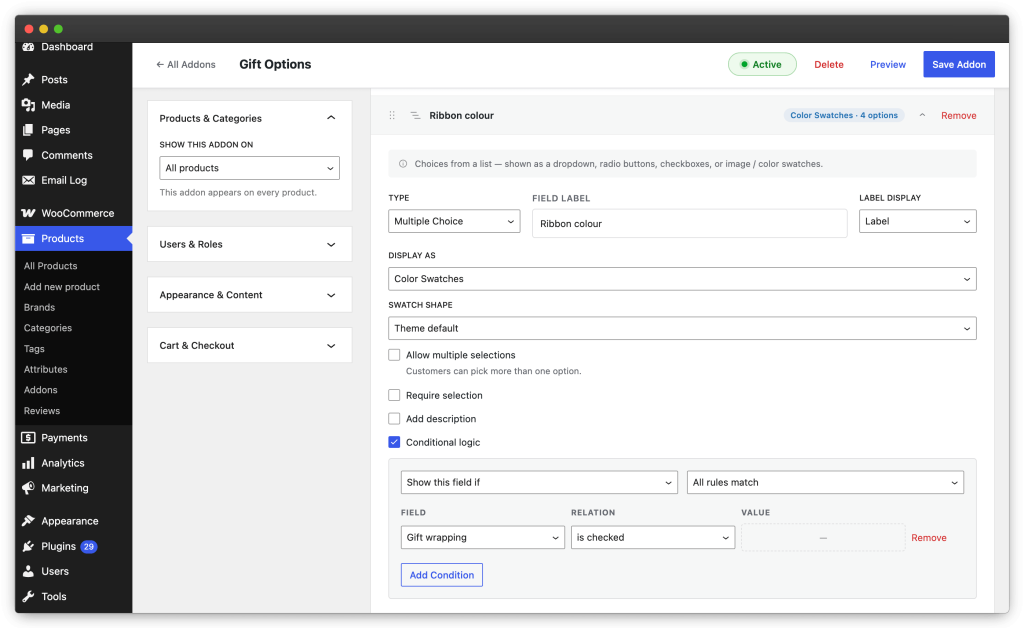
Everything happens in one screen, with no page reloads: the builder is a React app, so fields appear, reorder and update instantly, and you save once at the end.
The Builder
Preview
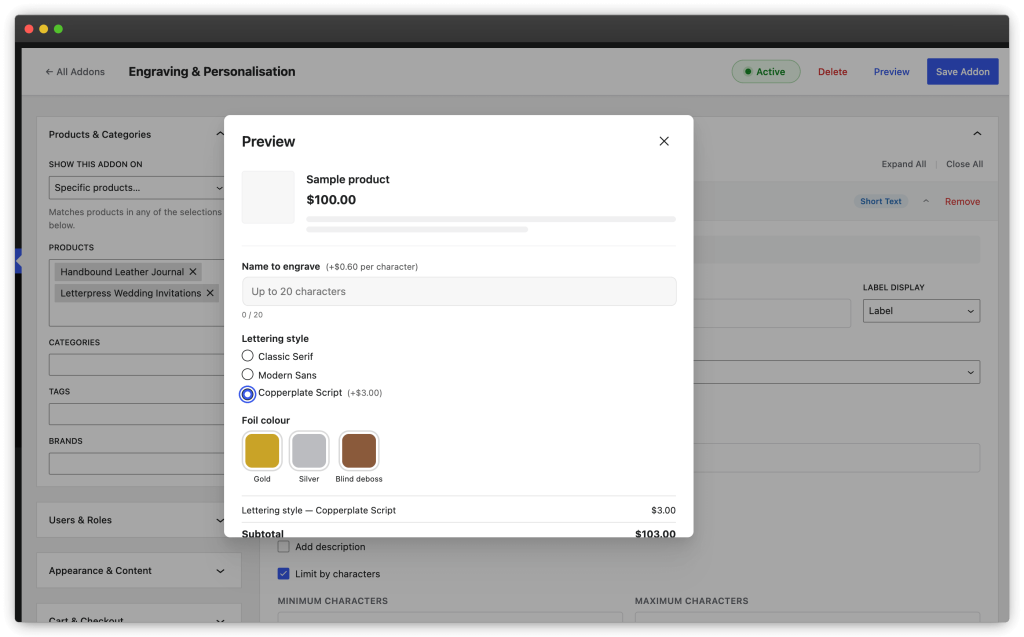
The Preview button in the builder’s top bar renders your current draft — even unsaved changes — using the real storefront markup and script. Conditional logic, character counters and the live totals box behave exactly as they will for a customer.
The preview is priced against a fixed $100.00 sample product, so percentage options are readable at a glance and the numbers don’t depend on your catalogue. What it deliberately does not show: the group’s position on the product page, your theme’s own styling, and how several groups stack — check a real product page once for those.
Managing groups
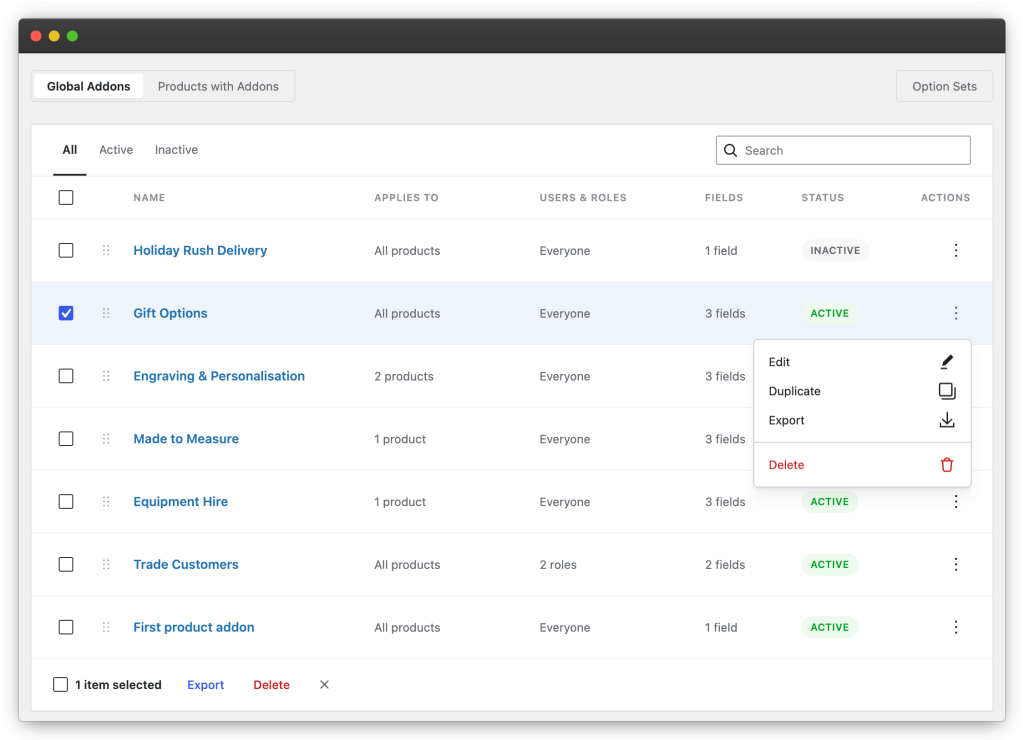
From the All Addons list you can activate or pause groups, duplicate a group to use as a starting point, reorder groups (their order decides render order when several apply to one product), and bulk-delete.
Import & export
Addon groups can be exported as JSON and imported on another site — the payload is portable, so you can build a group on staging and move it to production, or share a setup between shops. The import accepts a single exported group or a list of them.
Product-Specific Addons
Besides global groups, every product can carry addon fields of its own — for options that only make sense on that one product. Product-specific fields and global groups render together on the same page.
Open the product’s edit screen and switch to the Product Addons tab in the product data panel. The tab shows a summary of the product’s fields with their types, plus a link to a dedicated editor — the same full builder used for global groups, with every field type, pricing mode and conditional logic rule available.
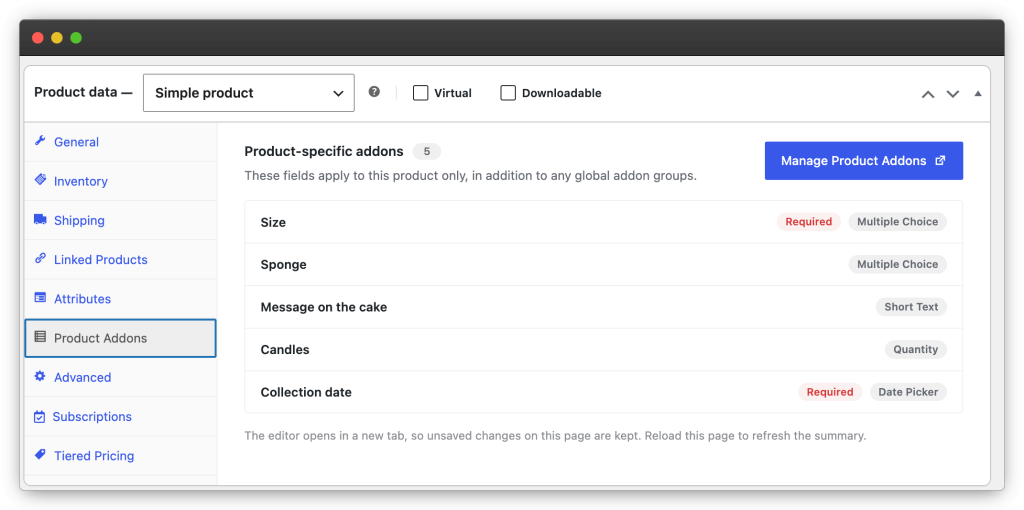
Worth knowing:
- Product addons have their own active toggle — switched off, the fields stay stored but never render, and the tab says so.
- They also carry their own appearance and cart & checkout settings, independent of any global group.
- The fields are stored in the product’s own meta, so they are duplicated with the product and deleted with it.
- On a brand-new product, save the product once before opening the editor.
Targeting
Products & Categories
The Products & Categories panel controls where a group appears. Choose All products, or switch to specific targeting by products, categories, tags, brands or attributes. Exclusions let you apply a group everywhere except selected items — for example, all of a category except products on sale.
Users & Roles
The Users & Roles panel limits who sees the group. Leave it empty to show the fields to everyone, or restrict them to selected user roles or individual customers. A special Guest role targets logged-out visitors, and exclusions work here too — show a field to everyone except a role, for instance.
Field Types
Every field has a label, an optional description, and a Required toggle. The available types:
Multiple Choice
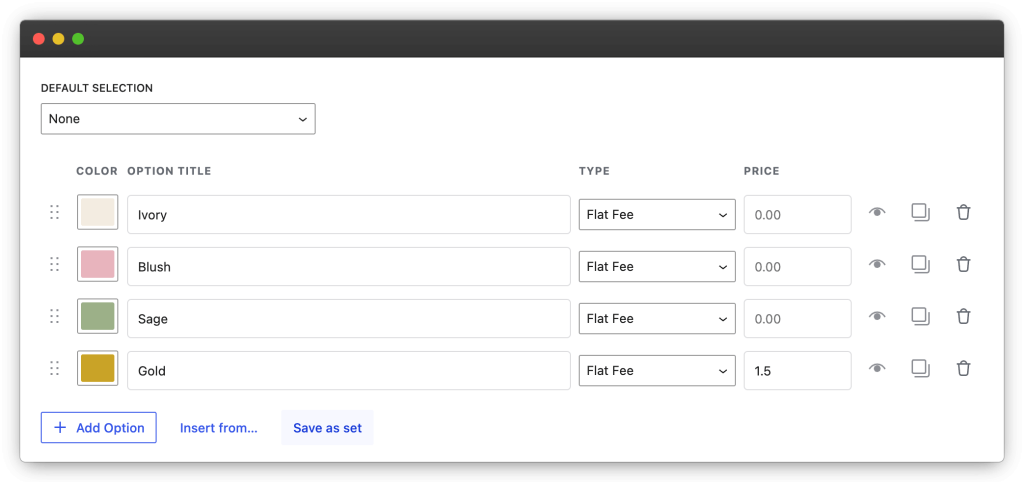
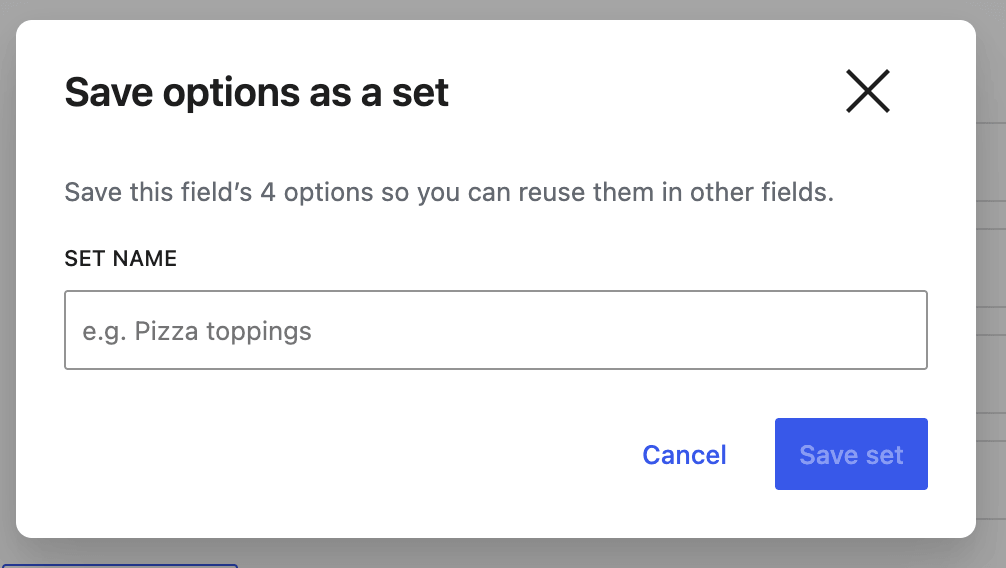
Choices from a list, displayed as a dropdown, radio buttons, checkboxes, or image / color swatches. Each option carries its own price. Options can be typed in by hand, inserted from a reusable option set, or imported from a product attribute.
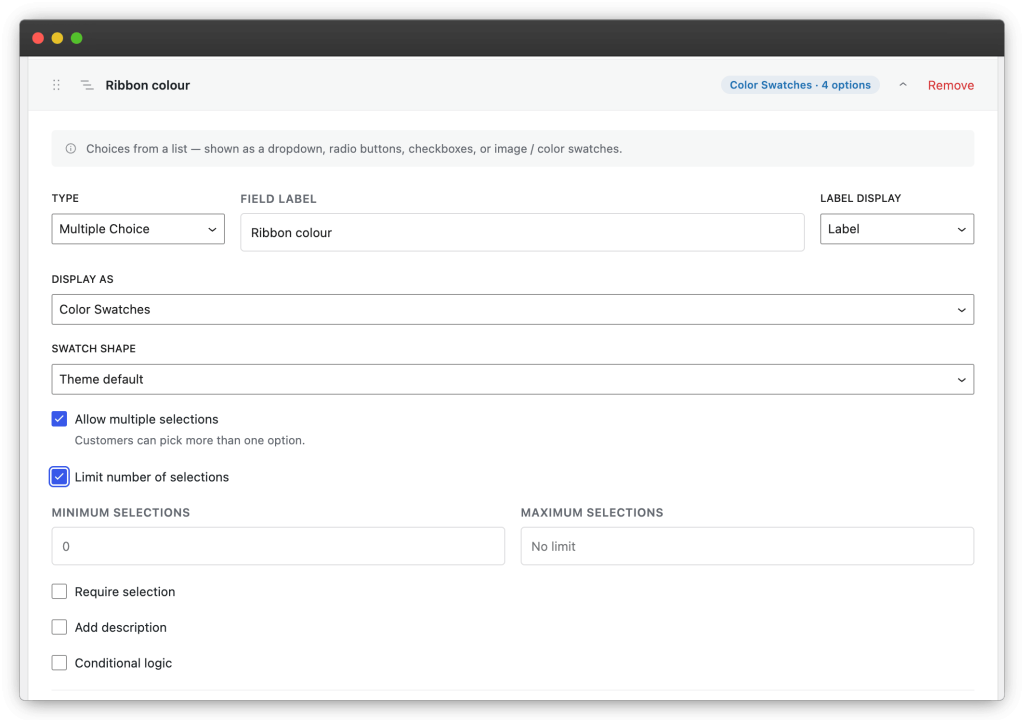
For multi-select fields you can limit how many options the customer may pick — a minimum, a maximum, or both (for example “choose 2 to 3”). Customers see a clear message when they are outside the range.
Single Checkbox
A single yes/no choice — gift wrap, express handling, or an agreement the customer must accept.
Short Text
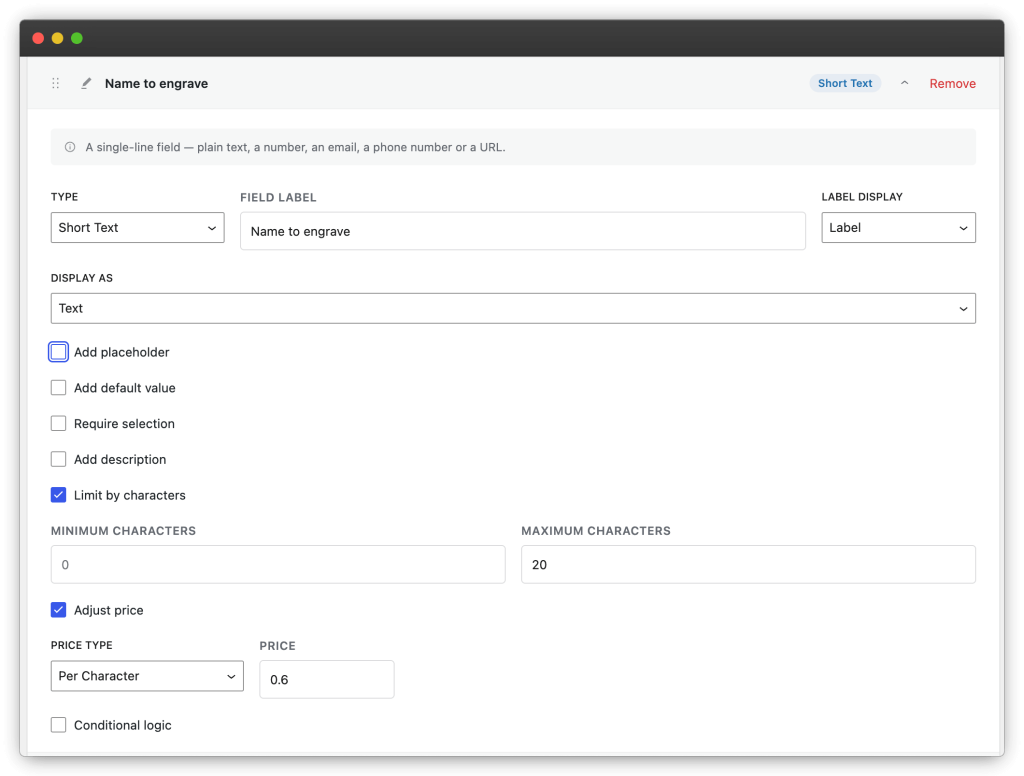
A single-line field. It can render as plain text, number, email, phone or URL input, each validated accordingly. Supports per-character pricing — ideal for engraving.
Long Text
A multi-line text area for longer input such as gift messages or special instructions.
Quantity
A numeric amount priced per unit — e.g. extra batteries at $1.20 each.
Dimensions
Width × height priced by area, for made-to-measure products like blinds, glass, fabric or signage. Units: mm, cm, m, in, ft.
Date Picker
A date input for delivery or occasion dates.
Date Range
A start and end date, priced per day — built for rentals and hire periods.
File Upload
Lets the customer attach a file, such as artwork or a photo. See File uploads & storage for limits and storage details.
Customer Defined Price
An amount the customer enters themselves — donations and tips.
Heading
Display-only text used to group or introduce fields. It collects no value.
Pricing
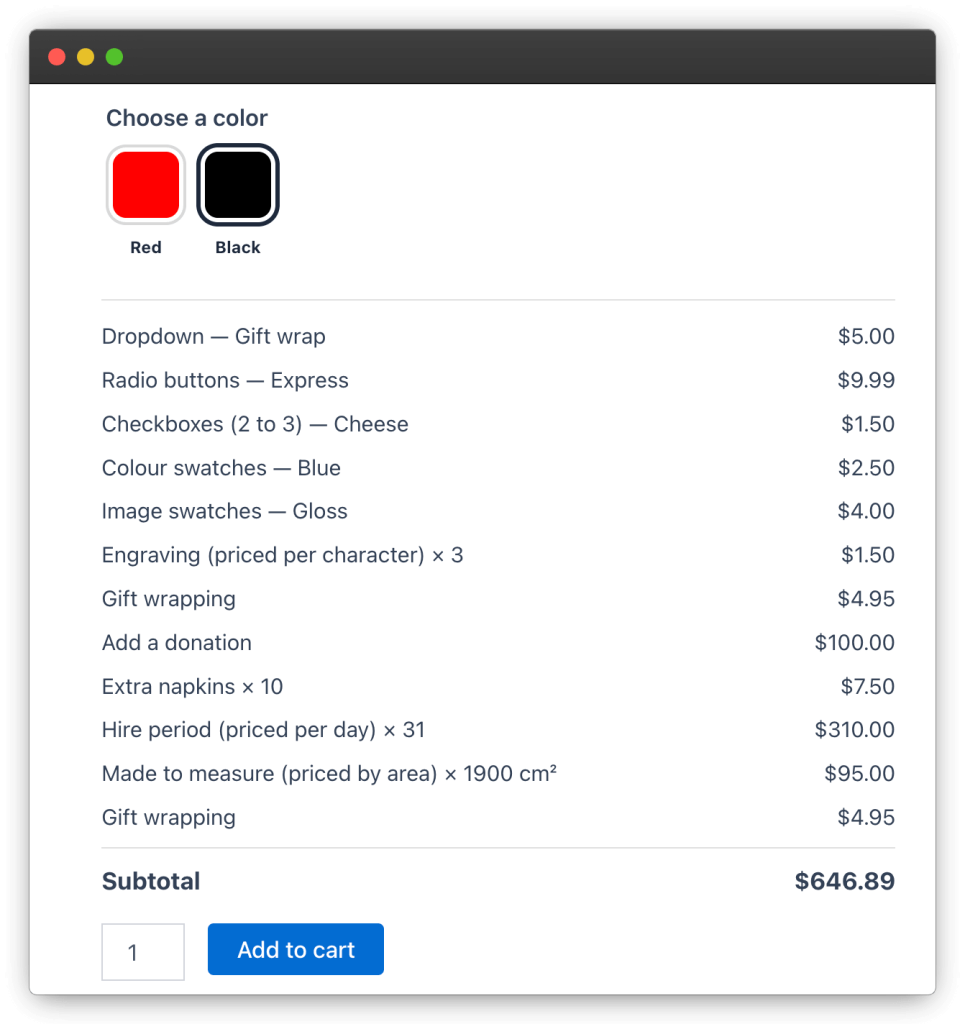
Every priced field or option uses one of six pricing modes:
- Flat fee — a fixed amount, once. Gift wrap +$2.50
- Percentage — a share of the product price; follows the selected variation’s price on variable products. 10% of $49.00 = +$4.90
- Per quantity — multiplied by the amount in a Quantity field. 3 × $1.20 = +$3.60
- Per character — multiplied by the number of characters typed. 10 characters × $0.50 = +$5.00
- Per day — multiplied by the days in a Date Range. 3 days × $12.00 = +$36.00
- By area — rate × (width × height) from a Dimensions field. 0.9 m² × $20.00 = +$18.00
The live totals box on the product page shows the product price, the options subtotal and the grand total, updating instantly as the customer makes choices — before Add to Cart.
Conditional Logic
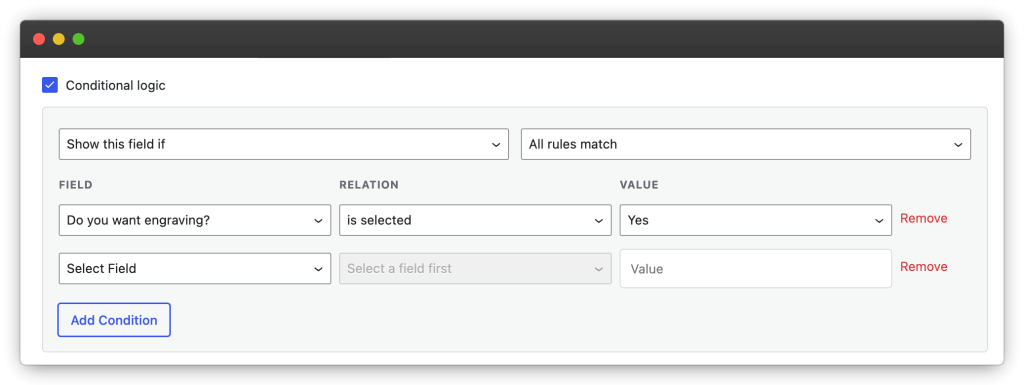
Show or hide any field based on the values of other fields. Each rule compares a field against a condition; a field can carry several rules matched with ALL (every rule must pass) or ANY (one is enough).
Available conditions depend on the field being checked, and include: selected / not selected, is / is not, contains, starts with, ends with, numeric comparisons (=, ≠, >, ≥, <, ≤), date is / before / after, empty / not empty, uploaded / not uploaded, and checked / not checked.
Typical uses: reveal a “Gift message” area only when “Add a gift message?” is checked, or build a step-by-step configurator where each answer unlocks the next question.
Option Sets
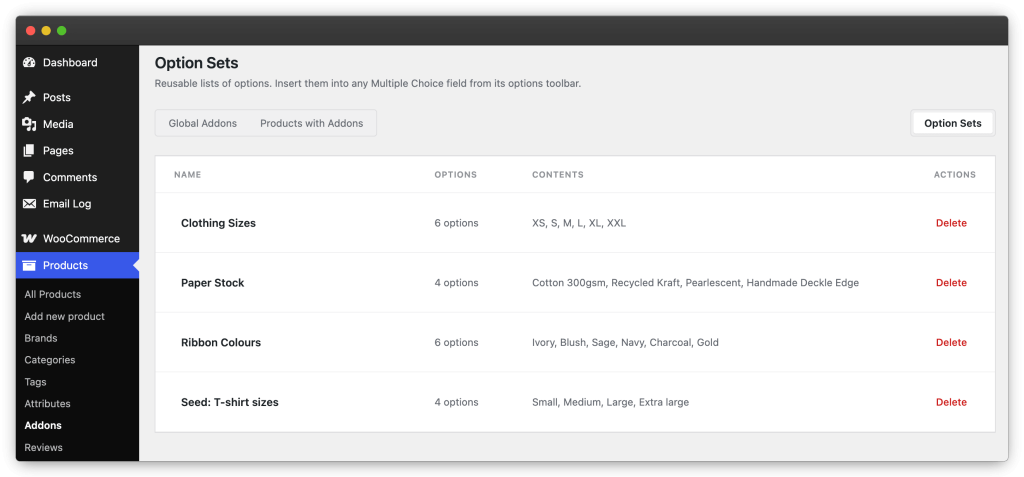
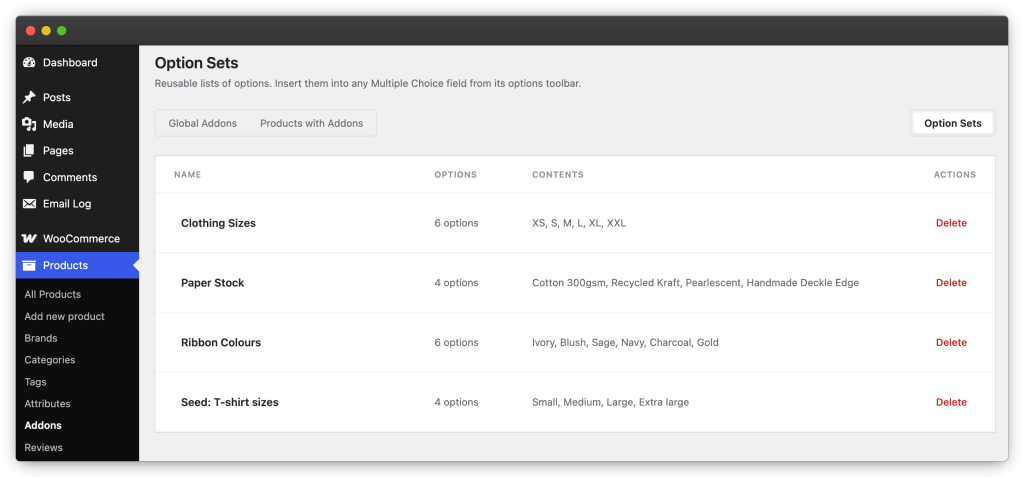
Option sets are reusable lists of options — colors, sizes, materials — that you build once and insert into any Multiple Choice field. You can also import options directly from an existing product attribute in one click instead of typing them again.
Appearance & Position
The Appearance & Content panel controls how a group renders:
- Layout — one or two columns of fields.
- Field labels — shown as labels, as titles, or hidden.
- Totals label — customise the subtotal wording in the totals box.
The position setting picks where the group renders inside the add-to-cart form: before or after the Add to Cart button, before or after the quantity selector, or after the variation options. On variable products, positions that WooCommerce hides until a variation is chosen are automatically relocated above the variations table so the fields stay visible.
Storefront styles
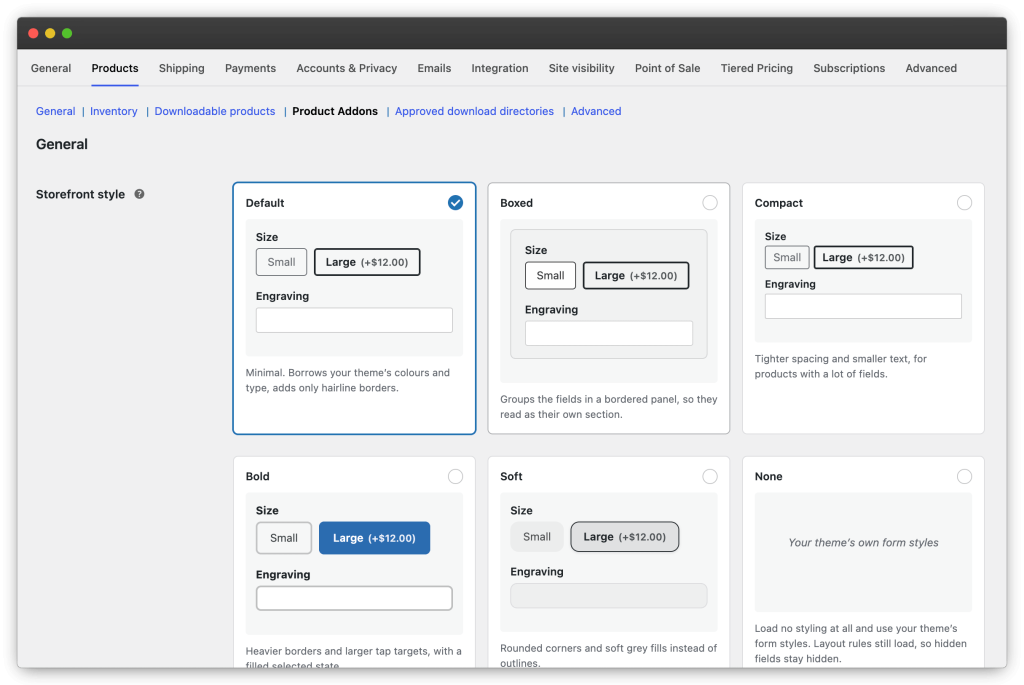
A global Storefront style (in Settings) decides how addon fields look on the product page. Six styles ship with the plugin, each shown as a live preview rendered by its real stylesheet:
- Default — minimal; borrows your theme’s colours and type, adds only hairline borders.
- Boxed — groups the fields in a bordered panel, so they read as their own section.
- Compact — tighter spacing and smaller text, for products with a lot of fields.
- Bold — heavier borders and larger tap targets, with a filled selected state.
- Soft — rounded corners and soft grey fills instead of outlines.
- None — loads no styling at all and uses your theme’s form styles; layout rules still load so hidden fields stay hidden.
Cart & Checkout
Selected options travel with the product through the cart, checkout, order emails and the admin order screen — in both the classic and blocks (Store API) cart and checkout.
In the Cart & Checkout panel you can choose:
- Which fields appear on the cart line — all fields, or only the ones the customer actually filled in.
- The “Edit options” link — shown under the options, on the product name, or hidden. The link reopens the product page with everything prefilled, including the quantity, so customers can change their choices without starting over.
Orders
On the order screen
Each order line lists the customer’s selections with their prices, and uploaded files are linked right from the order for fulfilment. Addon data is stored as regular order item meta, so it appears in order emails, invoices from other plugins, and exports.
Manual & phone orders
When you build an order by hand in the admin — phone orders, quotes turned into orders, or fixing a customer’s mistake without a refund cycle — a Configure addons button appears on each eligible line item. It opens a modal with the real storefront fields: conditional logic and the live subtotal behave exactly as they do for a customer, and saving runs the same validation and pricing as the cart. An admin-built line is indistinguishable from a purchased one, including for re-orders.
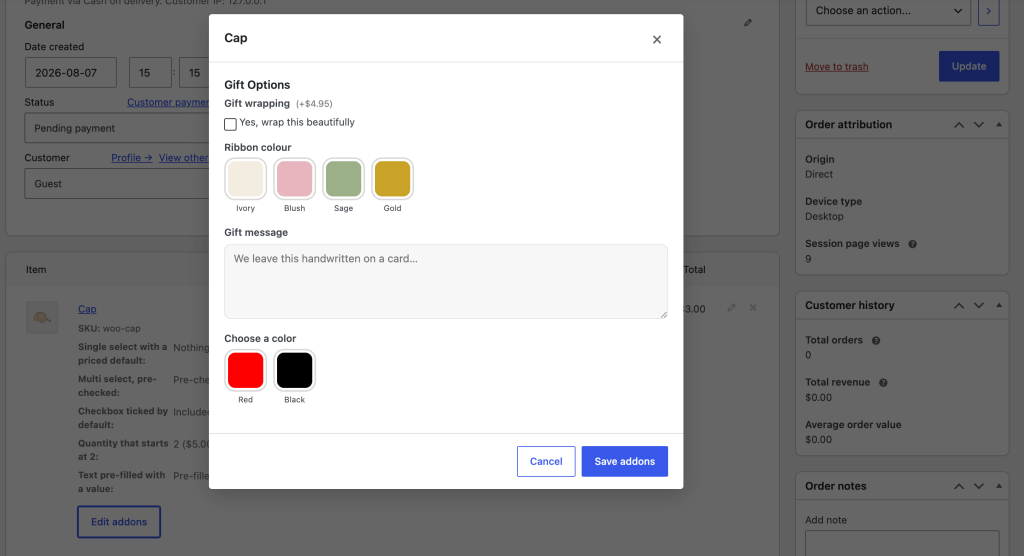
Two limits by design: file-upload fields are not offered in the modal (uploads belong to a customer’s session, which an admin doesn’t have), and the button appears on simple products and variations — the line types that can be priced unambiguously.
File Uploads & Storage
Upload fields accept the file types and maximum size you allow. Global defaults live in Settings; individual fields can be stricter than the global rules, never looser.
Files are uploaded when the customer adds the product to the cart and stored in a protected subdirectory of your uploads folder — never publicly listable. Files that end up attached to an order are always kept and linked from the order screen.
Files not attached to any order (abandoned carts, unfinished sessions) are deleted automatically after a configurable number of days — 7 by default, or 0 to keep everything forever.
Products with a File Upload field use the classic product page form, because files cannot travel in a Store API request. Everything else works with the blocks cart and checkout.
Settings Reference
Global options live under WooCommerce → Settings → Products → Product Addons
General
- Storefront style — the global look of addon fields, chosen from live previews. See Storefront styles.
- On uninstall — opt in to deleting all Product Addons data (groups, option sets, per-product fields, settings and uploaded files) when the plugin is deleted. Off by default; deactivating never removes anything.
File uploads
- Maximum file size — a global cap in MB; leave empty for no global limit.
- Allowed file types — comma-separated extensions (e.g.
jpg, png, pdf); empty allows anything WordPress permits. - Delete unpurchased uploads — retention in days for files never attached to an order. Default 7; 0 disables cleanup.
Integrations
Each third-party integration is listed with its status — plugin detected, integration running or idle until installed — and can be switched off individually if it conflicts with your setup. Integrations only run when the other plugin is active.
Compatibility
- Variable products — fields render above the variations table, visible before a variation is chosen; percentage pricing follows the selected variation.
- Blocks cart & checkout — full Store API support; selections appear on cart lines in classic and blocks flows.
- Multi-currency — WOOCS, CURCY, Aelia Currency Switcher, WCML currency, WooPayments Multi-Currency and Currency Switcher for WooCommerce (WCCS). Addon prices convert with the shopper’s currency.
- Translation — WPML and Polylang, including targeting of translated products.
- Tiered Pricing Table — addon prices stack correctly on top of tier prices.
FAQ
Will the fields match my theme?
Yes. The Default storefront style borrows your theme’s colours and typography, and the None style hands styling over to your theme entirely. Five further styles are available under Settings.
Where do uploaded customer files go?
Into a protected subdirectory of your uploads folder. Files not attached to any order are deleted automatically after a configurable number of days — see File Uploads & Storage.
Do addons work with variable products?
Yes. Fields render above the variations table so they are visible before a variation is chosen.
Can customers edit their choices from the cart?
Yes — the Edit options link on the cart line reopens the product page with everything prefilled, including the quantity.
Can I add or fix addons on an existing order?
Yes — use the Configure addons button on the order line. See Manual & phone orders.
Can I move my addon groups to another site?
Yes — export them as JSON and import on the other site. See Import & export.
A field isn’t showing on the product page — why?
Check, in order: the group’s Active toggle is on (product-specific addons have their own toggle on the product’s tab); the product matches the Products & Categories targeting (and isn’t excluded); the current user matches the Users & Roles rules; and no conditional logic rule is hiding the field.
Does deleting the plugin remove my data?
Only if you opted in via On uninstall in Settings. Otherwise all groups, option sets and files stay in place — and deactivating never removes anything.