
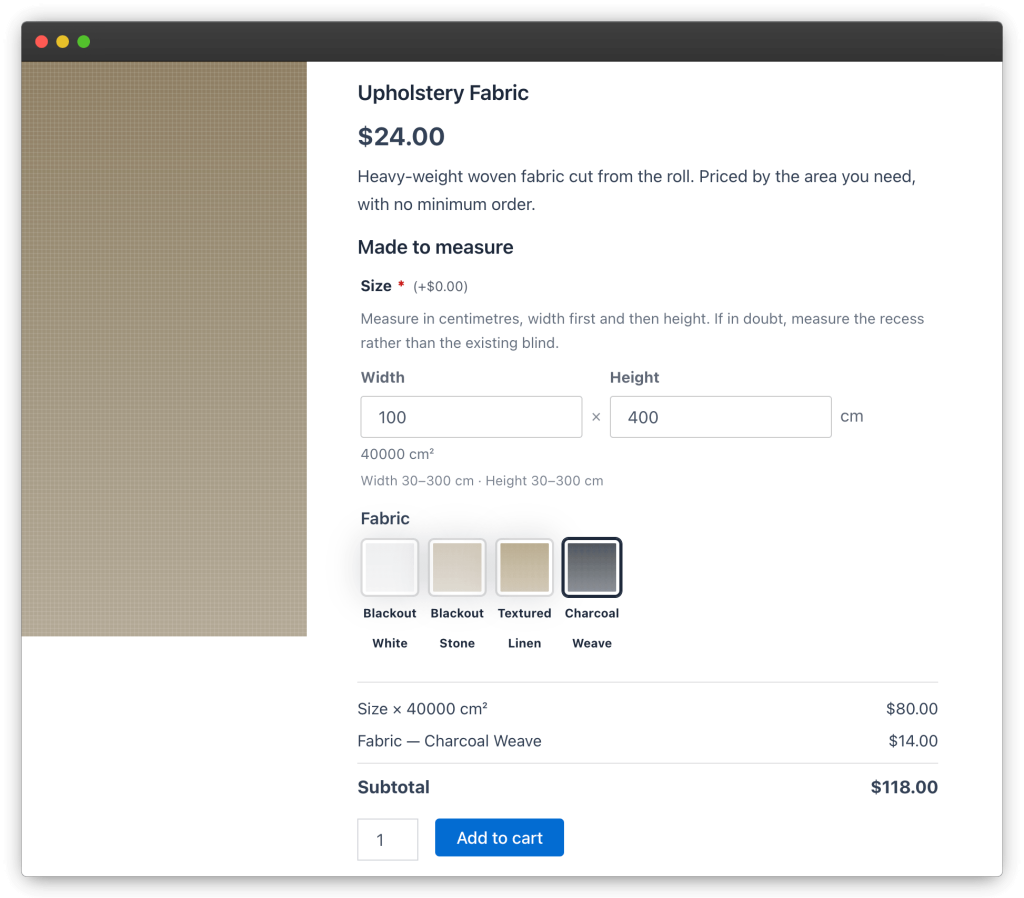
Blinds, glass, fabric, banners — made-to-measure products can’t have a fixed price, because the price is the size. The Dimensions field solves this: the customer enters width and height, and the plugin charges by the resulting area.
What you’ll build
- A Size field where customers enter width × height in centimetres
- A price of $20.00 per square metre, calculated live
- A material upcharge that stacks on top
Step 1 — Create the group
- Go to Products → Addons, click Add New and name the group Made to measure.
- Target it at your made-to-measure category in Products & Categories.
Step 2 — Add the Dimensions field
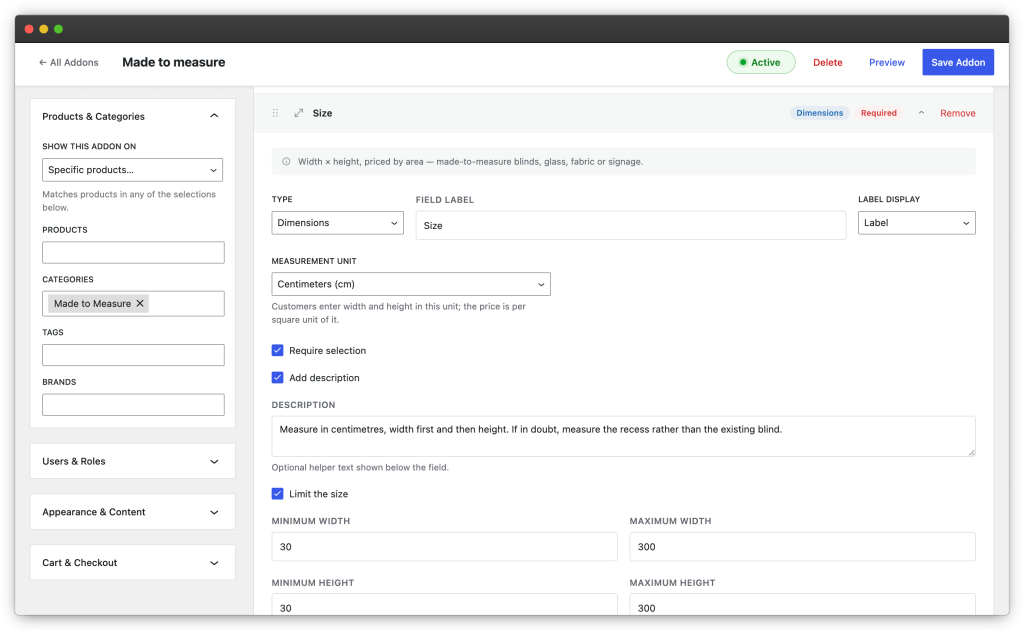
- Add a field of type Dimensions and label it Size.
- Pick the measurement unit —
mm,cm,m,inorft. We’ll use cm. - Set the pricing mode to by area with a rate of 20.00 — that’s $20.00 per square metre.
- Switch on Required: a made-to-measure product makes no sense without a size.
The math is shown to the customer as they type: 120 × 75 cm = 0.9 m² × $20.00 = +$18.00, with the total updating live before Add to Cart.
Step 3 — Add a material choice (optional)
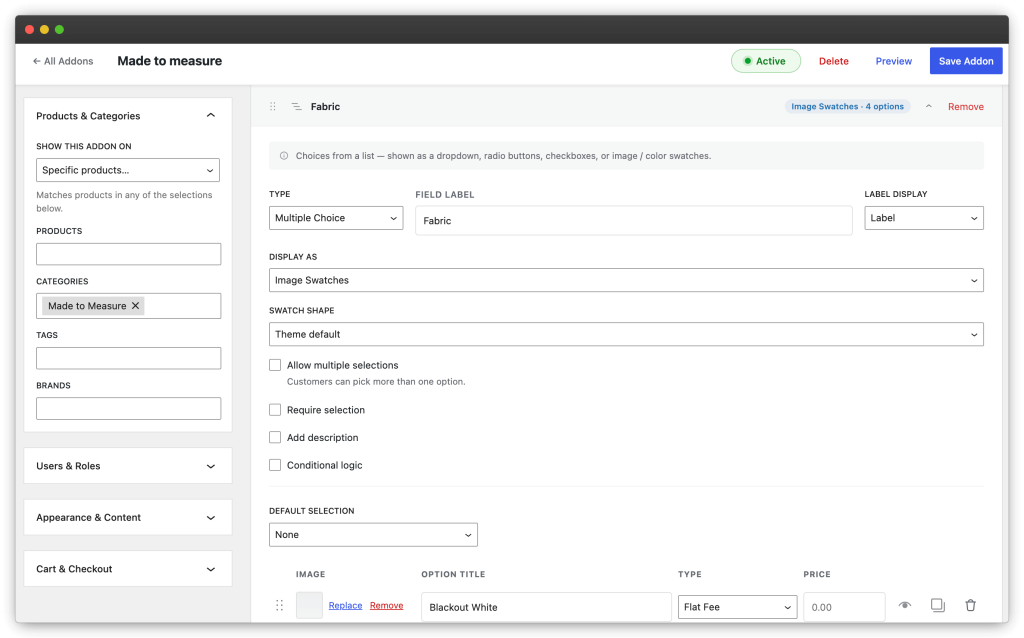
Real made-to-measure products usually pair size with a material. Add a Multiple Choice field — Fabric, say — displayed as image swatches, with a price on the premium options. A percentage price works well here if premium fabric should scale with the order value; a flat fee if it shouldn’t.
Step 4 — Preview, save, test
- Preview the group and enter a few sizes — check the area math reads the way you expect.
- Save Addon, then open a targeted product and add a sized item to the cart.
- The cart line records the entered size and its price — e.g. Size: 120 × 75 cm (+$18.00) — and carries it through to the order, so production gets the exact measurements with no back-and-forth.
Tips
- State your measuring convention (width first, then height) in the field description — it prevents the most common support email in this business.
- If sizes vary per product line, create separate groups per category rather than one global group — each can use different units and rates.
- An admin can enter or correct a size on a phone order with the Configure addons button on the order line — same fields, same area math.