
Gift wrapping is the classic product addon: a small upsell that almost any store can offer, and a perfect first project for U2Code Product Addons. In this guide you’ll build a gift-wrap option with a paid checkbox and a message field that only appears when the customer asks for wrapping.
What you’ll build
- A Gift wrap checkbox that adds a flat $2.50
- A Gift message text area that appears only when the box is ticked
- Applied to your whole catalogue at once
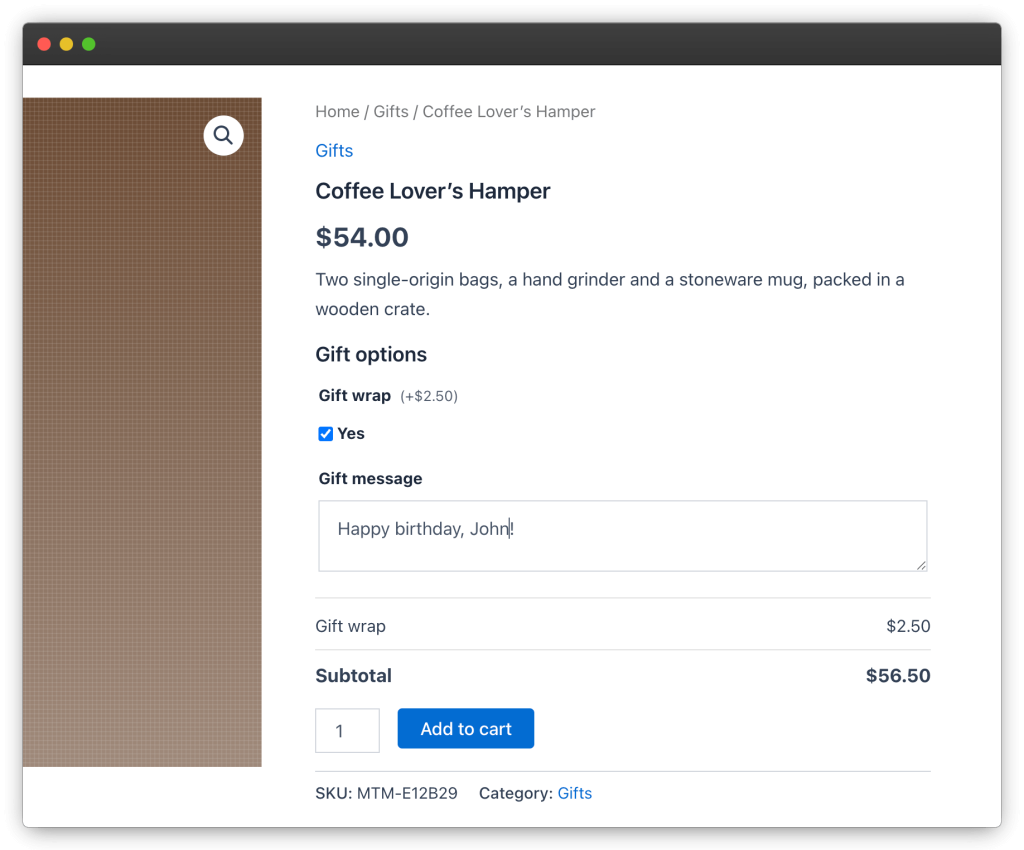
Step 1 — Create the addon group
- Go to Products → Addons and click Add New.
- Name it Gift options.
- In Products & Categories, leave All products selected — the group will appear on every product. (You can switch to specific categories later.)
Step 2 — Add the gift wrap checkbox
- In the Fields panel, add a field and set its type to Single Checkbox.
- Label it Gift wrap.
- Set the price to a flat 2.50.
Step 3 — Add the message field with a condition
- Add a second field of type Long Text and label it Gift message.
- In the field’s conditional logic, add a rule: show this field when Gift wrap is checked.
- Leave the field optional — some customers want wrapping without a note.
That single rule keeps the product page clean: customers who skip gift wrapping never see the message box at all.
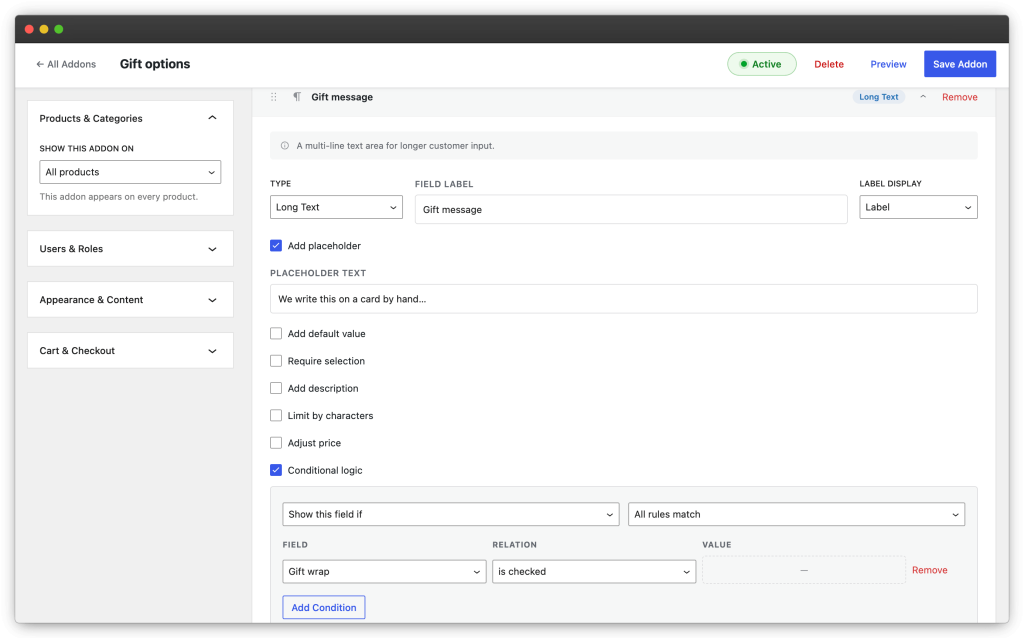
Step 4 — Preview and save
- Click Preview in the top bar. Tick the checkbox in the preview — the message field should appear, and the live total should rise by $2.50.
- Click Save Addon and make sure the Active toggle is on.
Tips
- Group the two fields under a Heading field (e.g. Gift options) if the product page already has other addons.
- In the group’s Cart & Checkout panel, choose to show only filled fields on the cart line — orders without wrapping stay uncluttered.
- The customer’s message is saved on the order line, so it appears in the order emails and on the admin order screen — no extra setup needed for fulfilment.